 PAGE 1
Single image PDF
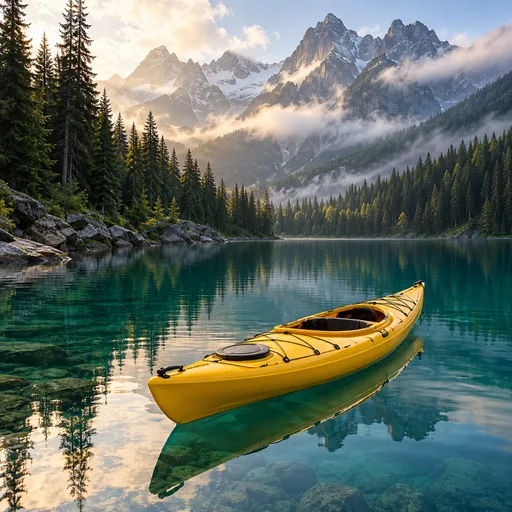
A single WebP photo converted into a one-page PDF matching the image's proportions.
- Layout
- Match image
- Encoding
- JPEG / high
- Result
- Generating PDF…
 WEBP/TOOLS
FREE · LOCAL · MULTI-PAGE PDF
Convert WebP images to PDF online for free. Combine several pictures into one multi-page document or make separate PDFs, adjust the page layout, and download without uploading your images.
Drop WebP images here
Create one multi-page PDF or separate PDFs without uploading.
30 files max · 20 MB each · 100 MB total
REAL PDF OUTPUT
Each sample PDF below is generated right in your browser by this converter, so the page count and file size reflect real output.
A single WebP photo converted into a one-page PDF matching the image's proportions.
A photo and an illustration placed on separate A4 portrait pages, preserving fine details.
THREE SIMPLE STEPS
Choose images, drag and drop, paste from your clipboard, or try the two-page sample. Arrange them in the order you want.
Choose combined or separate PDFs, pick Match image, A4, or US Letter, and adjust margins, orientation, and quality.
Generate your PDF right in your browser. Download one combined document, individual PDFs, or a ZIP archive.
RECOMMENDED SETTINGS
There is no single best setup for every picture. Use the starting points below, then inspect the live layout preview before creating your PDF.
| What you're converting | Output mode | Paper and placement | Quality |
|---|---|---|---|
| Long webpage screenshots | Combine or single PDF | Match image; no print margins | Preserve Details (PNG) for small text |
| Scanned forms and receipts | Combine, one scan per page | A4 or Letter; Fit; 10 mm margin | Preserve Details (PNG) for sharper text edges |
| Product and travel photos | Combine into one PDF | A4 or Letter; Auto; Fit | High (JPEG 90) for practical sharing |
| Separate client attachments | Separate PDFs + ZIP | Match image, or a specified paper size | High for photos; PNG for diagrams |
These are starting points, not file-size guarantees. This converter places one input WebP on each PDF page—it does not create OCR text, split one tall screenshot into multiple pages, or place several images onto the same page.
BETTER PAGE LAYOUT
Screen images and printed pages have different proportions. Pick a layout based on whether your PDF is meant for digital sharing or printing.
Creates a PDF page that matches each image's exact proportions with no extra margins—ideal for screenshots, web illustrations, and design mockups.
Very tall screenshots become one long page rather than multiple A4 sheets, with extreme dimensions capped for broad PDF viewer compatibility.
Choose A4 (210 × 297 mm) or US Letter (8.5 × 11 in) for printing, reports, and forms. Pick 0, 10, or 20 mm margins to leave breathing room around your image.
Fit full image keeps every edge visible; Fill and crop fills the printable area and trims overhanging edges.
Auto picks Portrait or Landscape independently for each image based on its dimensions after any 90° rotation, so wide photos and vertical scans sit comfortably in one PDF.
Choose Portrait or Landscape if you prefer a uniform page direction across the entire document.
PRINTING CHECKLIST
Choosing A4 or US Letter here sets the size of each PDF page. Your printer's paper size, unprintable edge, and print-dialog scaling are controlled separately when you print.
Match image keeps the full aspect ratio on one tall PDF page, while A4 or US Letter scales the entire screenshot onto a single sheet. The converter does not automatically break one long WebP into multiple printable pages.
See Adobe's explanation of PDF print scaling. Exact print options vary by printer and device.
MULTIPLE WEBP IMAGES
Use Combine to merge multiple WebP images into a single multi-page PDF with one image per page. Reorder files, rotate any page 90°, and download one clean document.
Use Separate PDF per image when each image needs its own file—then download PDFs individually or all together as a ZIP. Ideal for scanned receipts, product catalogs, and batches of screenshots.
QUALITY AND SIZE
PDF is a document format, not an automatic image-quality upgrade. Each page embeds your image as a clean JPEG or PNG based on the quality mode you pick.
| Option | Format | Recommended use | Good to know |
|---|---|---|---|
| High (default) | JPEG quality 90% | Photo collections and everyday sharing | Uses lossy compression; transparent areas become white |
| Smaller File | JPEG quality 70% | Lighter email attachments and form uploads | Fine text and sharp lines may soften slightly |
| Preserve Details | Lossless PNG | Text screenshots, line art, diagrams, and transparent graphics | Creates larger files; cannot restore detail lost in the original WebP |
JPEG modes fill transparent areas with white. Preserve Details (PNG) keeps transparency from your WebP, though most PDF viewers still display a white page behind transparent areas. Neither mode runs OCR or creates selectable text from screenshots.
WHAT CHANGES?
Keep WebP when an individual image needs to load quickly on a website. Convert to PDF when you want a printable layout, a fixed paper size, or several images combined into one document.
| Property | WebP image | Converted PDF |
|---|---|---|
| Structure | Single image (static or animated) | One or more image pages |
| Page size | Pixel width × height | Match image, A4, or US Letter |
| Animation | Supported by WebP | First frame only (static page) |
| Transparency | Supported | Kept in PNG mode; white background in JPEG modes |
| Selectable text | Image only | No OCR; text stays part of the image |
| Best for | Fast web images | Printing, sharing, filing, and multi-page documents |
WHEN A RESULT LOOKS WRONG
Quick fixes for the most common layout, file-size, transparency, and printing issues.
Switch from Preserve Details (PNG) to High (JPEG 90) or Smaller File (JPEG 70). High-resolution screenshots and large batches naturally produce bigger PDFs.
Choose Match image for borderless pages, or select A4/Letter with None margins. Fill and crop removes remaining space by trimming the outer edges.
Tall screenshots shrink to fit on a single print sheet. Try Match image for screen viewing, or split the long screenshot into shorter sections before making printable A4 pages.
JPEG modes fill transparent areas with white. Choose Preserve Details (PNG) to keep transparency, though many PDF viewers still display a white page behind transparent areas.
This converter creates an image-based PDF without OCR. Use a dedicated OCR tool if you need searchable or selectable text.
Use the 90° rotate button on individual files along with Auto orientation and Fit full image. Fill and crop trims edges to fill the sheet, so switch back to Fit to keep the entire image.
PDF page size and printer scaling are different. Match A4 or US Letter in both the converter and your print dialog, then compare Fit and Actual Size in your reader's print preview.
Try converting fewer images at once or switch from Preserve Details (PNG) to High (JPEG 90) so the batch stays within your browser's memory and file-size limits.
PRIVATE CONVERSION
Your WebP images are laid out and packaged into PDF files directly inside your browser. Files are never uploaded to our servers, so your receipts, screenshots, documents, and personal photos stay private on your device.
Need a universal photo file instead of a document? Use our WebP to JPG converter. Need a transparent image without PDF pages? Try WebP to PNG. Making a website favicon or desktop icon? Use our WebP to ICO converter.
MORE TOOLS
GOOD TO KNOW
Upload one or more WebP images, choose your page layout and quality, then click Create combined PDF or Create separate PDFs. Your PDF is built directly in your browser and ready to download.
Yes. Combine into one PDF is the default mode. Each WebP becomes one PDF page in your queue order—drag files or use Move up and Move down to reorder pages.
Yes. Switch to Separate PDF per image to export an individual PDF for each file, or download all finished PDFs together as a ZIP.
Yes. Your WebP images are converted into a PDF directly inside your browser—your files are never uploaded to a server.
Yes. The tool is free with no account and no watermark. Each batch supports up to 30 images (up to 20 MB per file and 100 MB total).
Select A4 or US Letter, pick Auto, Portrait, or Landscape orientation, and choose 0, 10, or 20 mm margins. If you prefer no paper borders, select Match image instead.
High (JPEG 90) and Smaller (JPEG 70) use JPEG compression—High keeps more detail while Smaller reduces file size. Preserve details (PNG) keeps crisp edges for text screenshots, diagrams, and transparent graphics, though the PDF can be much larger.
Choose Preserve details (PNG) to keep transparent areas from your WebP image. Keep in mind that many PDF viewers display a white page behind transparent areas, so they may still look white on screen. JPEG modes fill transparent areas with white.
No. If you upload an animated WebP, this converter uses its first frame to create a static PDF page.
No. Each page contains an image, not OCR text. You can view, zoom, and print the PDF, but you cannot highlight or search text inside the screenshot.
A4 and US Letter are fixed print sizes, so tall screenshots shrink to fit on a single page. Try Match image, set margins to None, or split long screenshots into sections before converting.
Each PDF page embeds a JPEG or PNG image along with PDF layout data. Using Preserve details (PNG) or combining many high-resolution images can make the PDF larger than the original compressed WebP files.
Not directly. Combine mode places one WebP image on each PDF page rather than creating a collage or contact sheet. If you need multiple pages per printed sheet, adjust the pages-per-sheet option in your print dialog.
Choose A4 or US Letter, select Fit full image, and add 10 or 20 mm margins. Open the downloaded PDF, match your printer paper size, and check the print preview—Fit and Actual Size behave differently near the paper edges.
No. Each WebP image becomes one PDF page. A tall screenshot shrinks to fit a single A4 page, whereas Match image creates one taller page. Split the screenshot into shorter sections first if you need multiple printable A4 pages.
 PAGE 2